
How to Remove the Background From a Portrait Photo for Your CV and LinkedIn
 Ezlun Team7 min read
Removing the background from a portrait photo means cutting away everything behind you and keeping only the person, so you get a transparent image for your CV, LinkedIn or company profile. With a clear, well-lit photo, AI can do this in under a minute. What's left is tidying the edges and picking the right background.
This guide shows how to use Ezlun's Remove Background tool, which runs AI background removal in your browser, and how to put the result into a job application.
Which portrait photos are easy to cut out, and which are hard?
AI background removal works best when the person stands out clearly from the background. Before you upload, run a quick check:
Photo feature | Easy | Hard |
|---|---|---|
Background | Plain wall, one color, different from your hair and clothes | Busy backdrop, trees, crowds |
Lighting | Bright and even on both sides of the face | Backlit, strong shadows on the wall |
Hair | Neat, tied back or short | Loose curls, fine flyaway strands |
Clothing | Clearly different from the background | Same color as the wall (white shirt, white wall) |
Accessories | None, or simple | Reflective glasses, wide-brim hats, sheer scarves |
Hard photos still work, but you'll spend more time fixing edges with the brush. If you're taking a new photo, stand in front of a plain wall about a meter away to reduce shadows.
How to remove a portrait background with Ezlun
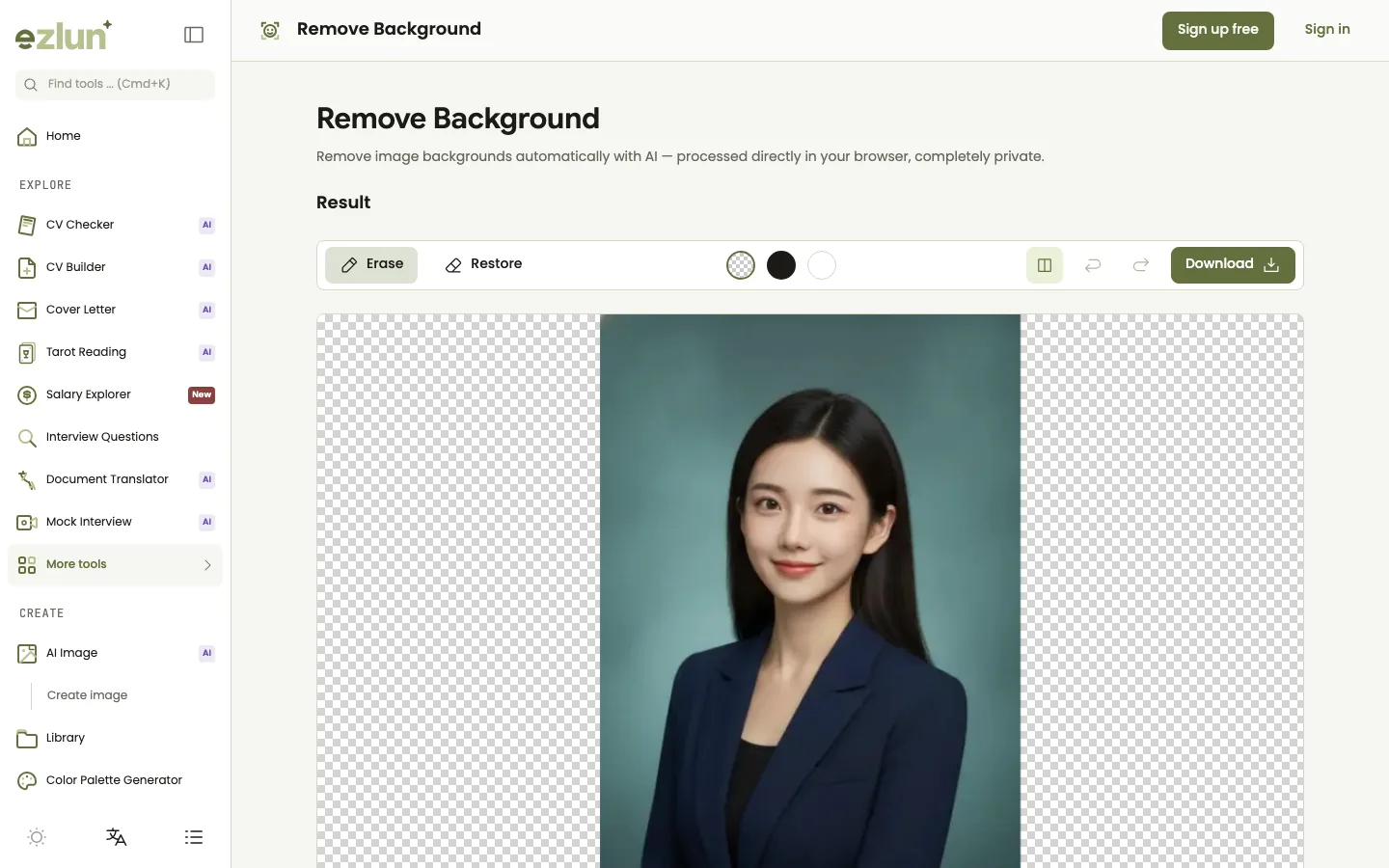
The original and the cutout side by side. The transparent area shows as a checkerboard.
Open the tool at ezlun.com/en/tools/remove-background.
Upload your photo: drag and drop or choose a PNG, JPG or WebP file up to 10MB. You can add up to 10 images at once.
Wait for the AI model the first time: on first use, your browser downloads a model of about 223MB and keeps it in its cache, so later visits skip this step. Use Wi-Fi for this one.
Wait for the cutout: a progress message tells you whether the tool is analyzing the image or exporting the result.
Check and fix the edges: use the Erase brush to remove leftover background and the Restore brush to bring back hair or shoulders that got cut off. Before/after comparison, undo and redo are there too.
Preview on another background: switch between transparent, black and white to see whether the edges are clean. Edge problems show up most clearly on black.
Download: click "Download" to get a transparent PNG.
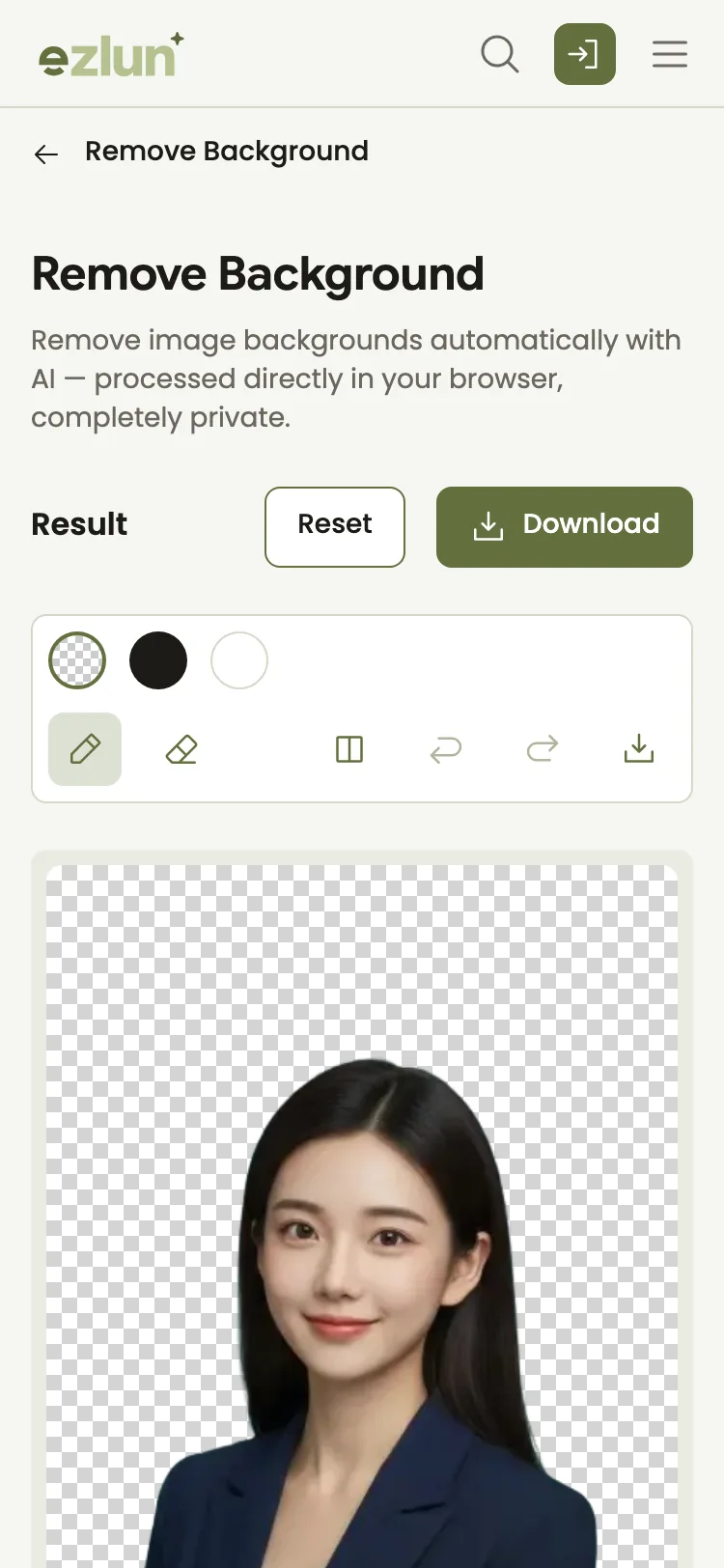
On a phone, the result comes with the brush tools, background preview buttons and download.
The tool is free, needs no sign-in and uses no energy.
How to use a transparent portrait on your CV or LinkedIn
You download a transparent PNG. The black and white buttons in the tool are only for previewing and don't change the file. Depending on where the photo is going:
Need a white background (CVs, forms, company profiles): open File Converter and convert the PNG to JPG. Transparent areas become white during the conversion. The full steps are in our guide to converting HEIC to JPG and PNG to WebP.
Adding it to Ezlun's CV Builder: in the personal details section, upload your photo (up to 5MB) and crop it to a square. Use the white-background JPG from the step above: the crop tool saves the photo as a JPG, so the transparent parts of a PNG can turn dark. See also how to choose a resume template.
LinkedIn and social media: platforms display transparency in different ways. To make sure your photo looks the way you expect, use the white version or place the cutout on a simple solid color before uploading. Optimize your LinkedIn profile to get noticed by recruiters has more tips on profile photos.
A good job application photo is simple: face clearly visible, looking straight or slightly turned, clothing that suits your field, and a calm single-color background. A cutout gives you a clean background, but it can't fix a dark or blurry photo.
How to fix jagged edges around hair
Hair is the hardest part for any background remover. When the edges look rough or still carry bits of background, work through these steps:
Preview on black and on white to spot the problem areas. Leftover background usually shows up as a light halo around the hair.
Use the Erase brush on larger patches of background trapped between strands.
Use the Restore brush where the AI cut away hair or a shoulder. Trace lightly along the edge; you don't need to fill it in.
Undo if you slip, then try again with a smaller brush.
Try a different photo if it still doesn't look right. A shot with a plain background and tidier hair usually beats a lot of manual fixing.
On a CV, the photo is usually shown quite small. A few imperfect strands of hair are almost invisible, so don't spend too long on every one.
Is my photo uploaded anywhere?
No. The AI model is downloaded to your browser and runs on your own device. Your portrait isn't uploaded to Ezlun's servers. That matters for personal photos, because you don't have to send a picture of your face to an outside service.
Because it runs on your device, speed depends on your hardware. Browsers with WebGPU support, such as recent versions of Chrome on a computer, are usually faster. On older phones, processing can be slow; if it takes too long, the tool shows an error and suggests a smaller image or a computer.
Limits of the tool
Downloads are at most 1,024px on the long edge. The tool scales large photos down before removing the background so the browser doesn't freeze. That's enough for a CV or profile photo, but not for large prints.
Output is a transparent PNG only. For a white background, convert to JPG with File Converter as described above, especially before adding the photo to CV Builder.
The first run downloads about 223MB. On a slow connection this can take a few minutes; later runs are much faster.
The AI can make mistakes with fine hair, glasses and clothing that matches the background. Check the result on black before you use it.
It doesn't replace official ID photos. Passport, visa and ID card photos have their own rules for size, background color and pose.
Frequently asked questions
What format is the cutout saved in?
A transparent PNG, with "-removed-bg" added to the file name. If you need a white-background JPG or a lighter WebP for a website, convert it with File Converter.
Can it handle curly hair and glasses?
Yes, but results depend on the photo. Loose curls and reflective glasses are the two hardest cases, and you'll often need the Erase and Restore brushes. A plain, well-lit background gives the best results.
Will the resolution drop?
For large photos, yes. Images with a long edge over 1,024px are scaled down to 1,024px before the background is removed, and the download keeps that size. Smaller images keep their original size.
Can I use it for an ID photo?
Not for official documents. Passport, visa and ID card photos have specific rules for size, background color and pose, and usually need to be taken to that standard. A cutout is a good fit for CVs, LinkedIn and internal profiles.
Is it free?
Yes. Remove Background uses no energy and doesn't require an account. You can process up to 10 images at a time. For general background removal beyond portraits, see our guide to removing image backgrounds online without Photoshop.
Summary
Pick an easy photo: plain background, good light, clothes that contrast with the wall.
Remove the background, then check it on black, and fix the edges with the Erase and Restore brushes.
Use the right version: convert to a white JPG before adding it to a CV or form; keep the transparent PNG when you want to place it on another background.
Your profile photo is part of your professional image. Personal branding for job seekers explains how to make your photo, CV and colors work together. Cutting out product shots instead? See preparing product photos for an online store, and if your final file is still too heavy, learn how to reduce PDF file size in your browser.
Get started with Ezlun's Remove Background tool. It's free and doesn't need an account.


