
How to Prepare Product Photos for an Online Store: Background, Format and Size
 Ezlun Team10 min read
To prepare product photos for an online store, work in four steps: remove the background so the product stands out, export the format your platform accepts, compress the file so pages load fast, and add lifestyle shots only where they help. Done in this order, you get a set of images that is clean, light and consistent.
This is the overview. Each step covers what matters, then points to a detailed guide for the Ezlun tool that handles it.
What makes a good product photo?
A good product photo shows the item clearly, in its true colors and proportions, and loads quickly on a phone. Looking great is a bonus. Being clear and accurate is the requirement.
Check every image against these five points before you upload it:
Criterion | What it means | Quick check |
|---|---|---|
Clear product | The item fills most of the frame, nothing covers it | Shrink the image to the size of a product tile on a phone. Can you still tell what it is? |
True color | Colors on screen are close to the real thing | Hold the product next to your screen and compare |
Consistent | Photos across your shop share a background, angle and aspect ratio | Line up 6 to 9 photos side by side and look for the odd one out |
Meets platform rules | Right format, size and ratio for the marketplace or site | Read the platform's product listing guidelines |
Light | File size is just big enough, so pages stay fast | Check the file size before uploading |
The four steps below handle clarity, consistency, platform rules and file size in turn. True color depends on how you shoot: use daylight, avoid warm indoor bulbs and skip color filters.
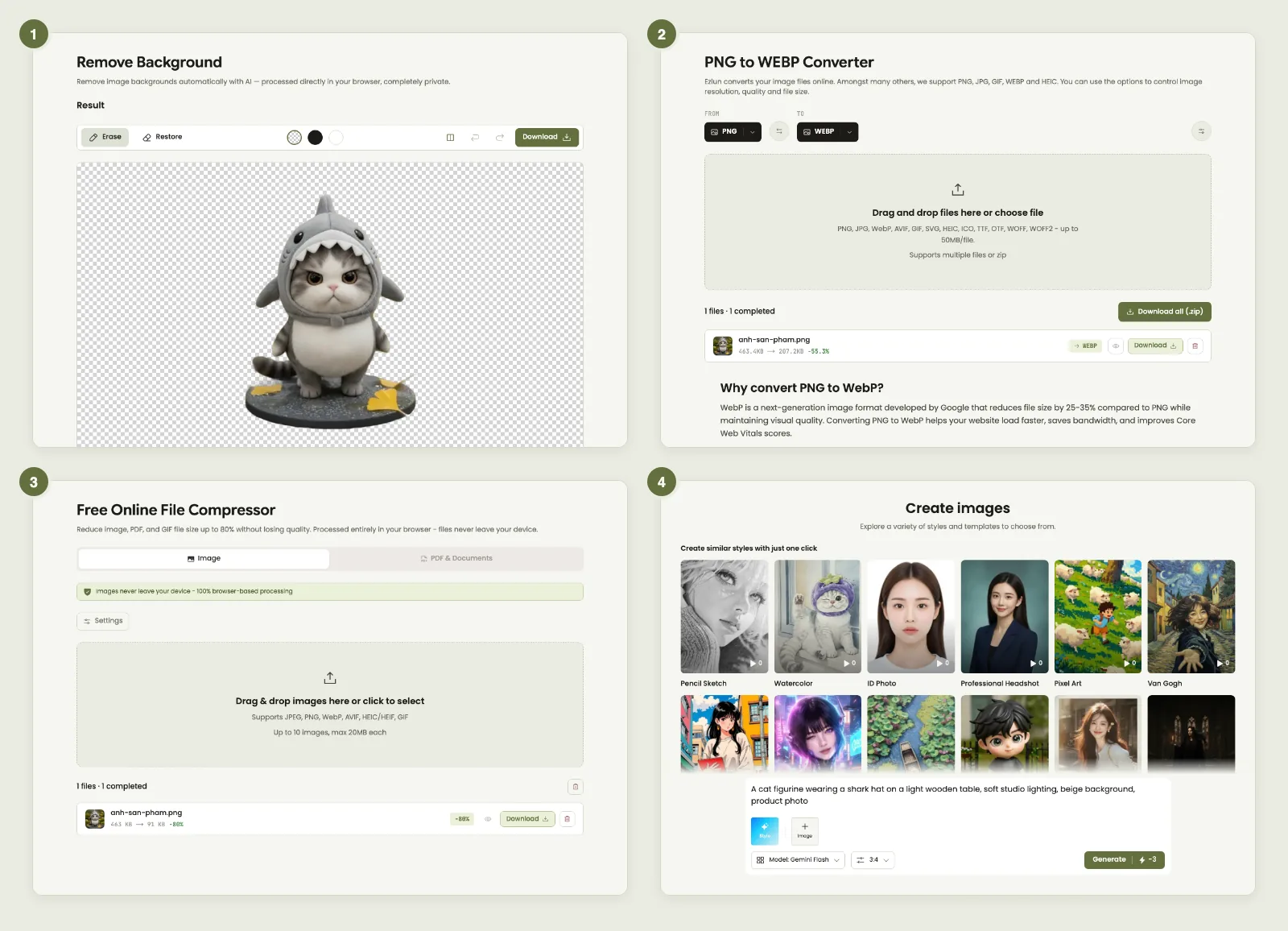
The four steps in order: remove the background, convert, compress, add a lifestyle shot.
Step 1: Remove the background from product photos
A clean, shared background makes every item in your shop look like it belongs to the same catalog. Do this first, because the format and file size you choose later depend on the cutout.
With Ezlun's Remove Background:
Upload up to 10 images at once in PNG, JPG or WebP, up to 10MB each.
Let the AI cut out the product. Processing happens in your browser, so your photos are not sent to a server.
Use the Erase and Restore brushes to fix spots the AI missed, such as bag handles, shoelaces or the clear edge of a bottle.
Download the result. The file is always a transparent PNG. The white and black background buttons are only for previewing.
A tip for product shots: shoot on a plain background that contrasts strongly with the item and the AI will cut it out much more cleanly. Put white products on a dark backdrop, and dark products on a light one.
The guide to removing the background from a portrait photo goes deeper into touching up edges with the brushes. The same technique works for products.
Step 2: Choose the right image format
The right format depends on where the photo will live. Marketplaces usually ask for JPG or PNG, while your own website is better served by WebP because it is lighter.
Format | Transparency | File size | Use it when |
|---|---|---|---|
JPG | No | Small | The photo has a background (white or a scene) and goes to a marketplace or social media |
PNG | Yes | Large | You need to keep a transparent cutout, or the platform only accepts PNG |
WebP | Yes | Smaller than JPG or PNG at similar quality | Your own website or a self-built store page |
One thing to watch: a transparent PNG loses its transparency when you convert it to JPG. If the marketplace wants a white background, place the product on white first, then export the JPG.
With Ezlun's File Converter, pick a target format (PNG, JPG, WebP, AVIF and more) and convert several images at once in your browser. Files over 10MB need you to sign in. If you shoot on an iPhone, the tool also accepts HEIC files. The guide on how to convert HEIC to JPG explains why it is worth converting before you upload.
Step 3: Compress and resize product images
Lighter images make product pages open faster on mobile and save storage. The goal is to shrink the file until any further loss would be visible to the eye.
With Ezlun's File Compressor:
Drop in up to 10 images in JPG, PNG, WebP, AVIF, HEIC or GIF, up to 20MB each (files over 10MB need sign-in).
Adjust the quality setting. The default already balances size and sharpness for most photos.
If the original is very large, turn on resize and bring it down to the width the platform needs. A 4000px photo shown in an 800px slot only makes the page heavier.
Change the format here if you like, for example compress and convert to WebP in one pass.
Open the before and after comparison, zoom in on any text on the label to make sure it is still readable, then download.
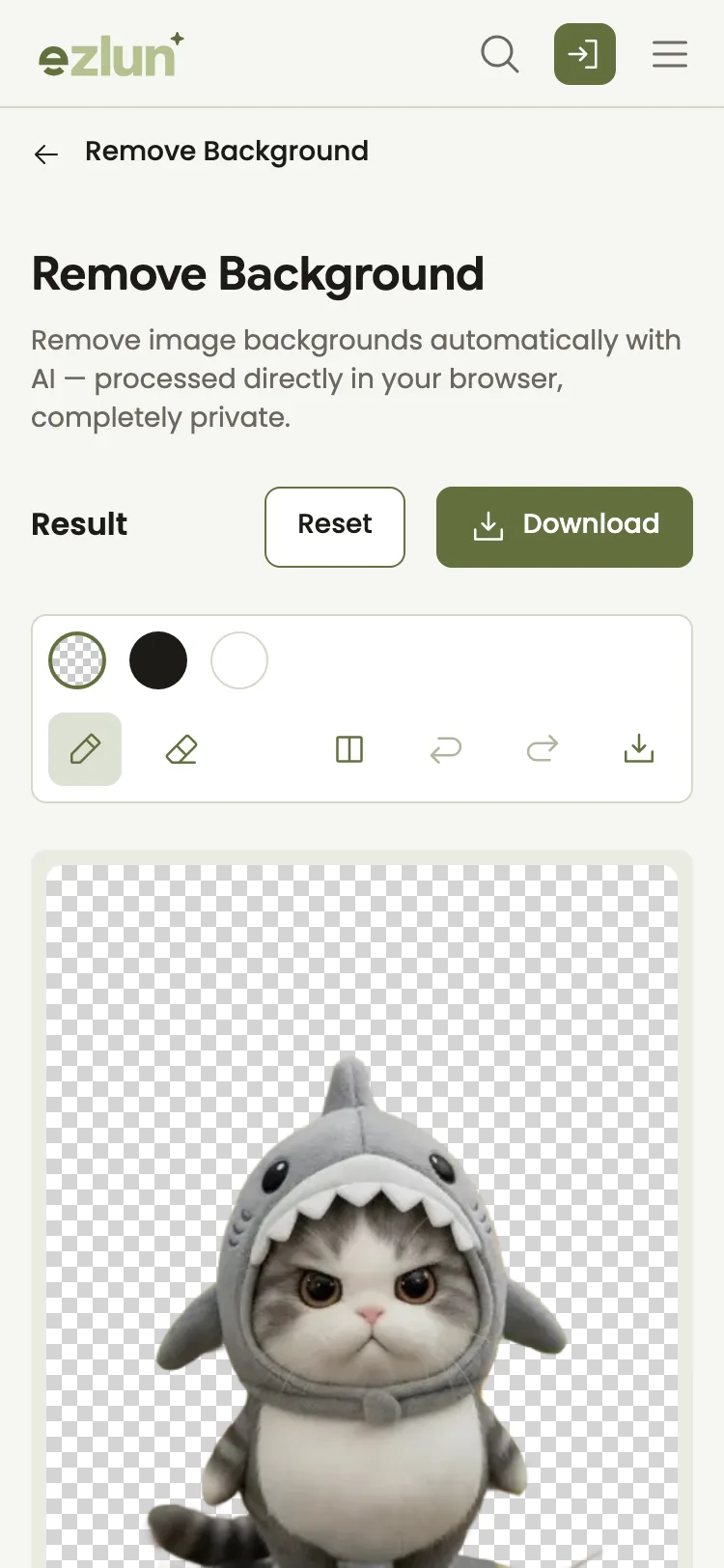
Comparing before and after on a phone lets you check sharpness before you download.
Images are compressed on your device and never uploaded to a server. If you also need to shrink a PDF catalog for wholesale buyers, see how to reduce PDF file size in your browser.
Step 4: Add AI lifestyle shots, not AI product shots
Lifestyle images (the product on a wooden table, in a living room, next to a plant) help shoppers picture it in use. AI can create that setting and mood. It must not replace real photos of the product.
With Ezlun's AI Image:
Describe the scene clearly: the surface, the light, the angle and the main colors. For example: "light oak tabletop, soft morning window light, blurred living room behind, cream tones".
Pick an aspect ratio that fits where you will post. The tool offers 7 ratios. 1:1 (square) suits product tiles and 9:16 suits stories and reels.
Add a reference image if you want the AI to follow the shape of your product.
Each text-to-image generation uses 3 energy, or 5 energy with a reference image. You get 15 free energy every day. The guide on how to write AI image prompts has a formula and examples for better descriptions.
An honest warning: AI can get details wrong, such as logos, text on packaging, the number of buttons or the stitching. Use AI images as secondary, mood-setting shots. Your main image and detail shots should be real photos of the exact item you sell. Photos that mislead buyers about the product lead to returns, complaints and bad reviews.
How should you name files and write alt text for product images?
File names and alt text (a short description of the image for search engines and screen readers) help product images on your own site get found. On marketplaces this is usually handled by the platform, so it mainly matters for your website.
File name: lowercase, hyphens between words, describing the actual item. For example
cream-canvas-tote-bag.webpinstead ofIMG_2034.webp.Alt text: one short sentence describing what the image shows. For example "Cream canvas tote bag on a wooden table".
One alt per image: the front, the back and the zipper close-up each deserve their own description.
No keyword stuffing: "tote bag, canvas bag, cheap cute cloth bag" is hard to read and does not help.
Example:
Weak: file
photo1.png, alt "bag".Better: file
cream-canvas-tote-front.webp, alt "Front of a cream canvas tote bag with long handles".
A sample routine for a new product
Here is a suggested order for one item, from phone snapshot to ready-to-list images:
Take 4 to 6 real photos on a plain background: front, back, side, a detail, and one in hand to show scale.
Remove the background from the front and back shots and export PNG.
For a marketplace: place them on white and export JPG. For your own site: keep the transparency or use a brand-colored background and export WebP.
Compress and resize to the platform's requirements.
Create 1 or 2 AI lifestyle shots if needed, remembering they are secondary.
Name the files and write alt text before uploading to your website.
If you are also putting together a job profile or pitching freelance work, the tools in steps 1 and 4 work there too. The guide to personal branding for job seekers shows how to make a consistent profile photo and color palette.
Limits of these tools
AI background removal is not perfect with transparent objects (glassware), fine fur (plush toys) or products the same color as the background. Set aside time to fix edges with the brushes.
Compression is a trade-off. Push it too far and the image blurs and label text disappears. Always check before downloading.
AI images can get details wrong and do not replace real product photos.
Platform requirements change over time. This guide does not replace each marketplace's official listing rules, so check them before you upload.
Frequently asked questions
How many pixels wide should product photos be?
It depends on the platform. Each marketplace lists a minimum size, an aspect ratio and a maximum file size in its product listing guidelines, and those numbers can change. Read those requirements first, then use the resize option in File Compressor to match them. For your own website, images do not need to be much wider than the largest slot they appear in.
Can I use WebP on marketplaces?
Not every marketplace accepts WebP. If the upload field rejects the format, convert to JPG or PNG. WebP works best on your own website, where you control the format.
Do product photos need a white background?
Not everywhere, but many marketplaces encourage a clean, simple background for the main image. White or one consistent color keeps your shop tidy and makes products easy to compare. Secondary images can use a lifestyle setting.
Do smaller images really make a website faster?
Yes. Images are usually the heaviest part of a product page, so shrinking them helps the page load faster, especially on mobile data. Keep enough quality that label text stays readable.
Can I process photos in bulk?
Yes, in batches. Remove Background and File Compressor each take up to 10 images per batch, and File Converter also lets you select several images at once. For a few dozen photos, split them into several rounds.
Summary
To prepare product photos for an online store, follow this order: remove the background, export the format your platform accepts, compress and resize, then add AI lifestyle shots where they help. Your main image should always be a real photo, and every image on your own site deserves a clear file name and alt text.
Start with Ezlun's Remove Background. It is free and runs right in your browser.


