
How to Write AI Image Prompts: A Beginner's Formula With Examples
 Ezlun Team7 min read
How to write AI image prompts comes down to describing five things: the subject, the setting, the style, the lighting and the framing. The more specific you are, the less the AI has to guess, and the closer the result gets to the picture in your head.
This guide gives you a five-part formula, a table of weak and strong prompts, and a walkthrough of Ezlun's AI Image tool.
What is an AI image prompt?
A prompt is the text description you give an AI image generator. The model doesn't know what you intend. It only works from the words you type. A short prompt like "a cat" gives you a random cat. A detailed one gives you the cat you actually wanted.
Beginners tend to make two mistakes:
Too little detail. The AI fills the gaps with the most generic choices.
Conflicting instructions. Asking for "a real photo" and "cartoon style" in the same prompt leaves the AI guessing which one you meant.
The five-part prompt formula
You don't need long prompts, just complete ones. Work through these five parts in order:
Subject: who or what is at the center, plus a few details. Example: "a young woman with short hair in a cream sweater".
Setting: where the subject is and what they're doing. Example: "reading a book by a café window".
Style: photo, watercolor, oil painting, 3D clay and so on. Example: "soft watercolor style".
Lighting and color: time of day and main tones. Example: "warm late-afternoon sun slanting through the window".
Framing: camera angle and shot size. Example: "half-body close-up".
Put together: "A young woman with short hair in a cream sweater, reading a book by a café window, soft watercolor style, warm late-afternoon sun slanting through the window, half-body close-up."
Tip: most tools, including Ezlun's, have a separate aspect ratio setting. Choose the ratio there instead of only writing it in the prompt.
Weak vs strong AI image prompt examples
Goal | Weak prompt | Stronger prompt |
|---|---|---|
Blog illustration | "office" | "A tidy home workspace, light wooden desk, laptop, small green plant, natural morning light, realistic photo, eye-level view" |
Product shot | "nice coffee" | "Iced latte on a white marble table, condensation on the glass, blurred background, soft light from the left, close-up product photo" |
Fun avatar | "cute dog" | "A corgi wearing round glasses, big smile, 3D clay style, pastel blue background, close-up of the face" |
Phone wallpaper | "mountains" | "Misty mountain range at sunrise, purple and orange tones, oil painting style, vertical frame for a phone screen" |
What the right column has in common: a specific subject, a setting, a single style and a clear lighting choice.
Text to image vs image to image: what's the difference?
There are two common ways to generate images:
Text to image: you write a description and the AI creates a brand-new picture. Use it when you don't have a starting image.
Image to image: you upload a picture and describe what should change, such as the style or the background. Use it when you want to keep the composition or the character from the original.
With image to image, focus your prompt on what to change: "keep the composition, switch to watercolor style, pale blue sky background". You don't need to describe what's already in the photo.
How to create an image with Ezlun, step by step
Ezlun's AI Image tool accepts prompts in English or Vietnamese and comes with 17 ready-made styles and 7 aspect ratios. You need to sign in to generate images.
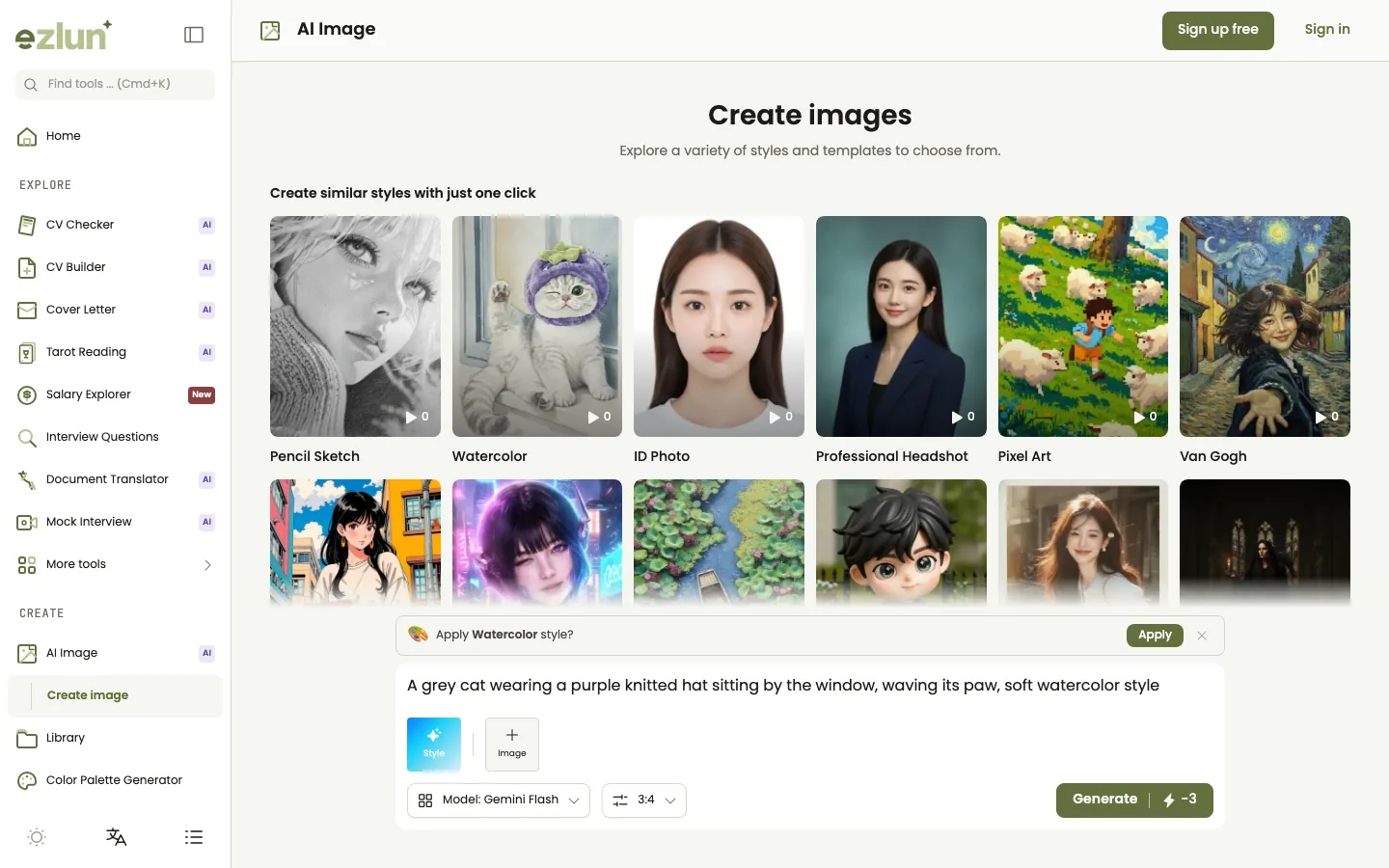
The prompt box sits at the bottom, next to the style, aspect ratio and reference image buttons.
Open the tool at ezlun.com/en/tools/ai-image and sign in.
Write your prompt using the five-part formula in the "Describe your image..." box. Prompts can be up to 2,000 characters.
Pick a style (optional): for example Watercolor, Oil Painting, Clay 3D, Anime 90s or Sticker Die-cut. As you type, the tool may suggest a matching style; click "Apply" if you want it.
Choose an aspect ratio: Square 1:1 for social posts, Story / Reel 9:16 for vertical video, Widescreen 16:9 for banners, Poster 2:3 for posters.
Add a reference image (optional): up to 4MB, if you want the AI to work from an existing picture.
Click "Generate" and wait for the result. Finished images are saved in your Library so you can view and download them later.
Adjust and regenerate if it isn't right yet. Change one part of the formula at a time so you can see which change made the difference.
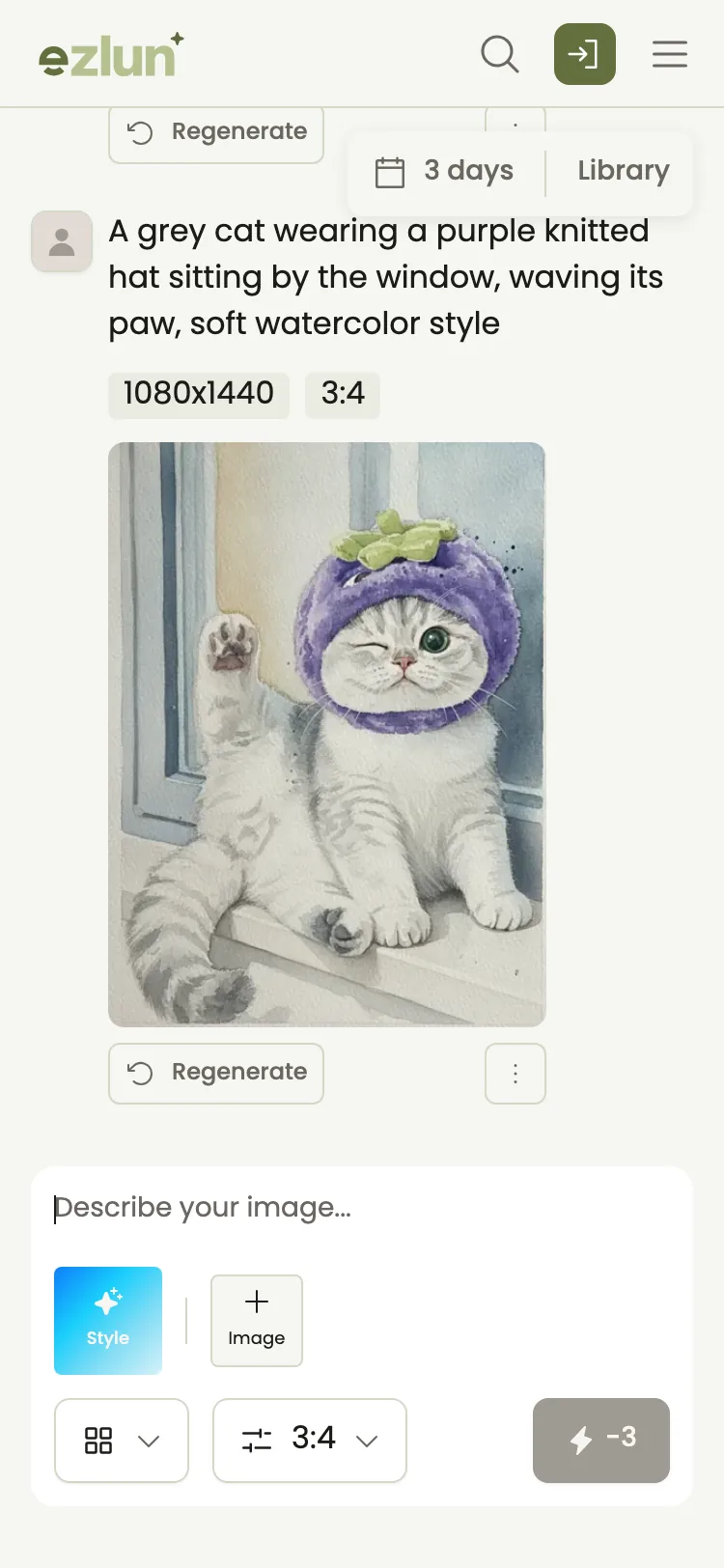
Each image is shown with the prompt that made it, so you can edit and try again.
Generated images often need a little extra work. Remove the background from a portrait photo if you need a transparent cutout, and if you're placing images in a document to send, see how to reduce PDF file size in your browser. Making images for an online shop? Preparing product photos for an online store covers the whole process. For a professional profile, read personal branding for job seekers. And if you're still choosing a generator, we compared five free AI image generators.
What should you watch out for when using AI images?
A few rules matter, especially for public or commercial use:
Don't create fake images of real people. Don't use AI images to impersonate someone or to mislead people about real events.
Check originality. Under Ezlun's terms, the images you create belong to you, but AI output can resemble existing work. You're responsible for checking before commercial use.
Avoid copyrighted logos and characters. Recreating famous cartoon characters or brand logos can infringe intellectual property rights.
Label AI images when required. Some platforms ask you to mark AI-generated content. Check the rules where you post.
Limits of the tool
Images can have glitches. Hands, text inside the image and warped objects are common problems with AI images in general.
Every run is different. The same prompt can produce different images. Generate a few and pick the best.
The AI can misread words. If a detail comes out wrong, describe that detail more precisely.
It doesn't replace real photos when accuracy matters, such as product photos for items you actually sell.
Frequently asked questions
Should I write prompts in English?
English works well, and the tool also accepts Vietnamese. Whatever language you use, specific nouns and adjectives matter more than long sentences. If one detail keeps coming out wrong, rewrite just that detail in plainer words.
Which aspect ratio should I choose?
Choose based on where the image will go: Square 1:1 for social posts, 9:16 for Stories, Reels and phone wallpapers, 16:9 for banners and slides, 2:3 for posters, and 3:2 for a classic camera look.
Does generating images cost energy?
Yes. A text-only image uses 3 energy, and an image with a reference picture uses 5. Every account gets 15 free energy each day, and you can buy extra energy packs if you need more.
Can I use AI images commercially?
Under Ezlun's terms, the images you create belong to you and Ezlun claims no rights over them. You're still responsible for making sure an image doesn't copy someone else's work and that it follows the law and the rules of the platform where you use it.
Why do AI images get hands wrong?
Image models learn from huge numbers of pictures, but small, highly variable details like hands and lettering are still hard for them. To reduce errors, choose framing that doesn't show hands clearly, describe the pose precisely, or regenerate a few times.
Summary
To write better AI image prompts, use the five-part formula: subject, setting, style, lighting and framing. Stick to one style per prompt, and change one part at a time when the result isn't right.
Try it now with Ezlun's AI Image tool: write your prompt, then pick from 17 styles and 7 aspect ratios.


