
How to Choose a Color Palette for a Website: From Brand Color to HEX Codes
 Ezlun Team7 min read
How to choose a color palette for a website, in short: start from one brand color, add a background color and an easy-to-read text color, then choose one accent color for buttons. Next, check the contrast between text and background, and write down the HEX codes so every page uses the same colors.
This guide covers each color role and the 60-30-10 rule, then shows how to use Ezlun's Color Palette Generator to keep your brand color, generate the rest and export HEX codes or CSS.
What colors does a website palette need?
A usable palette is not five pretty colors in a row. Each color needs a clear job. Most websites only need these five roles:
Role | Used for | How to pick it |
|---|---|---|
Primary | Logo, large headings, navigation bar | Usually your brand color |
Secondary | Supporting backgrounds, icons, borders | Same family as the primary, but softer |
Accent | Main buttons, links, alerts | Stands out against the primary; use sparingly |
Background | Page background, content cards | White, off-white or a very light gray |
Text | Paragraphs, labels, captions | Black or dark gray, high contrast with the background |
On top of these, most sites add a few status colors: red for errors, green for success, yellow for warnings. Keep those close to familiar conventions so people understand them instantly.
What is the 60-30-10 rule?
It is a common convention from interior and graphic design, not a formal standard. The idea is to split colors by how much area they cover:
About 60% is the dominant color. On a website this is usually the background.
About 30% is the second color, for example the primary color in the navigation, headings and hero section.
About 10% is the accent, saved for buttons and the spots where you want attention.
The rule is most useful for avoiding one common mistake: using the accent so often that nothing stands out anymore. If every button is the same bright color, visitors cannot tell which one matters most.
How to build a palette from your brand color with Ezlun
Ezlun's Color Palette Generator has 28 generation modes in 6 groups, such as Color Theory, Moods, Decades & Eras and Nature & Scenes. It does not calculate the other colors from the one you enter. Instead, you lock your brand color, then regenerate the remaining colors until they fit.
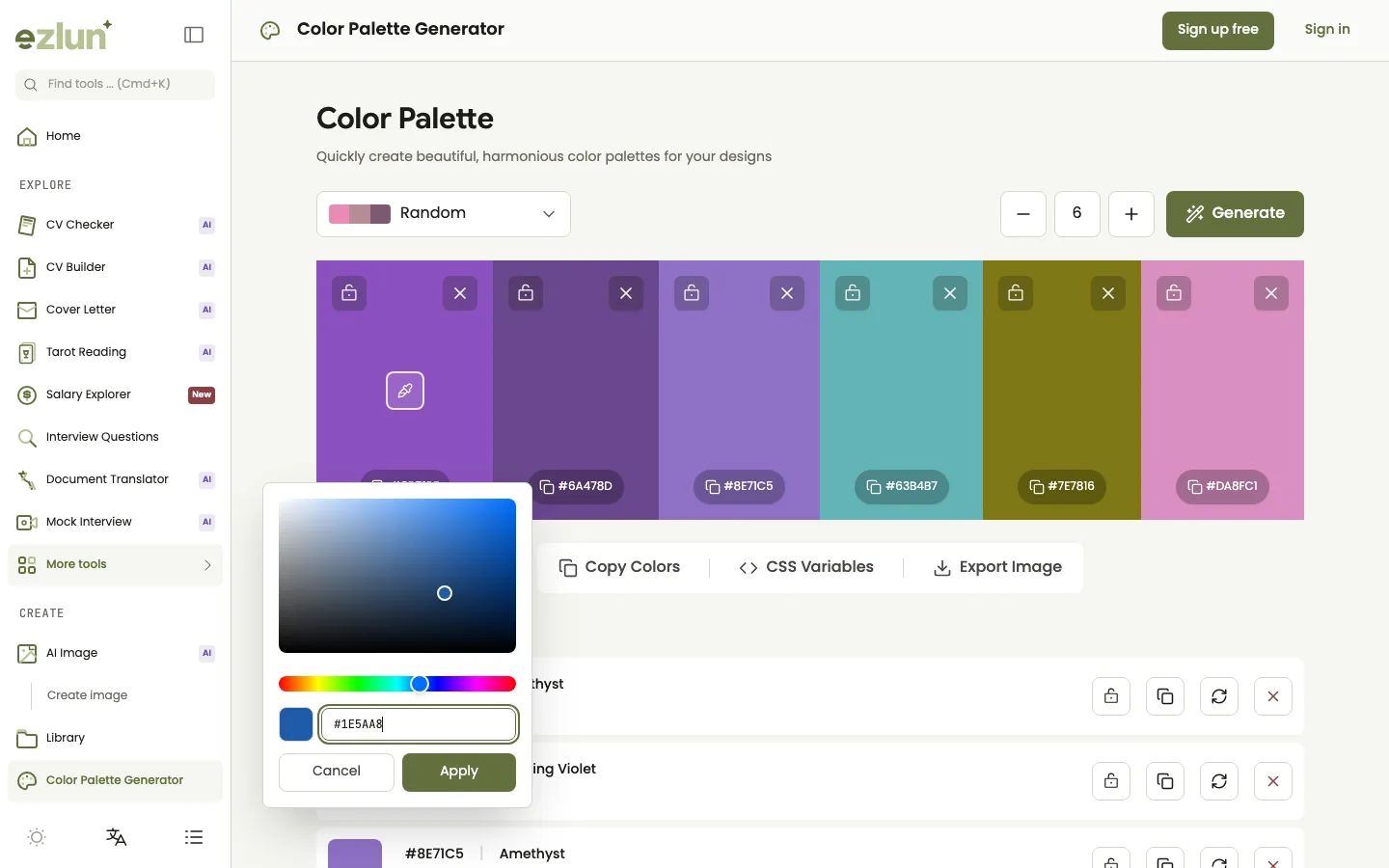
Each column is one color, with its HEX code and buttons to lock, copy, regenerate or remove it.
Open the tool at ezlun.com/en/tools/color-palette. It starts with a random 6-color palette.
Set the number of colors: use the plus and minus buttons to choose between 2 and 8. Five colors usually cover the five roles above.
Enter your brand color: click a color swatch, type your brand's HEX code (for example
#1E3A5F) and confirm. The color you enter is locked automatically.Choose a generation mode: the Color Theory group has the classic schemes, such as Monochromatic, Analogous and Complementary. If your brand has a clear mood, try the Moods or Nature & Scenes groups.
Regenerate the unlocked colors: click "Generate" or press the Space bar. Lock any color you like, then keep going for the rest.
Fine-tune single colors: the regenerate button on a color changes only that one; the remove button deletes a color you do not need.
Export when you are happy (see the export section below).
Tip: your background and text colors rarely need generating. Type in an off-white and a dark gray, lock them, and let the tool suggest only the secondary and accent colors.
Checking text and background contrast
A beautiful palette with hard-to-read text is not ready to use. The widely used standard for measuring this is WCAG, the W3C's Web Content Accessibility Guidelines. Minimum contrast ratios under WCAG:
Level | Normal text | Large text (18pt and up, or 14pt bold) |
|---|---|---|
AA (the usual target) | 4.5:1 | 3:1 |
AAA (enhanced) | 7:1 | 4.5:1 |
The Color Palette Generator does not measure contrast yet. Once you have a palette, paste each text and background HEX pair into an online contrast checker to see the ratio. The pairs that matter most:
Body text color on the page background.
Button text (often white) on the accent color.
White text on the primary color, if you put headings on a primary-colored block.
If a pair fails, you can usually fix it by lightening the background or darkening the text a little. There is no need to change the whole palette.
Exporting your palette as HEX, CSS or an image
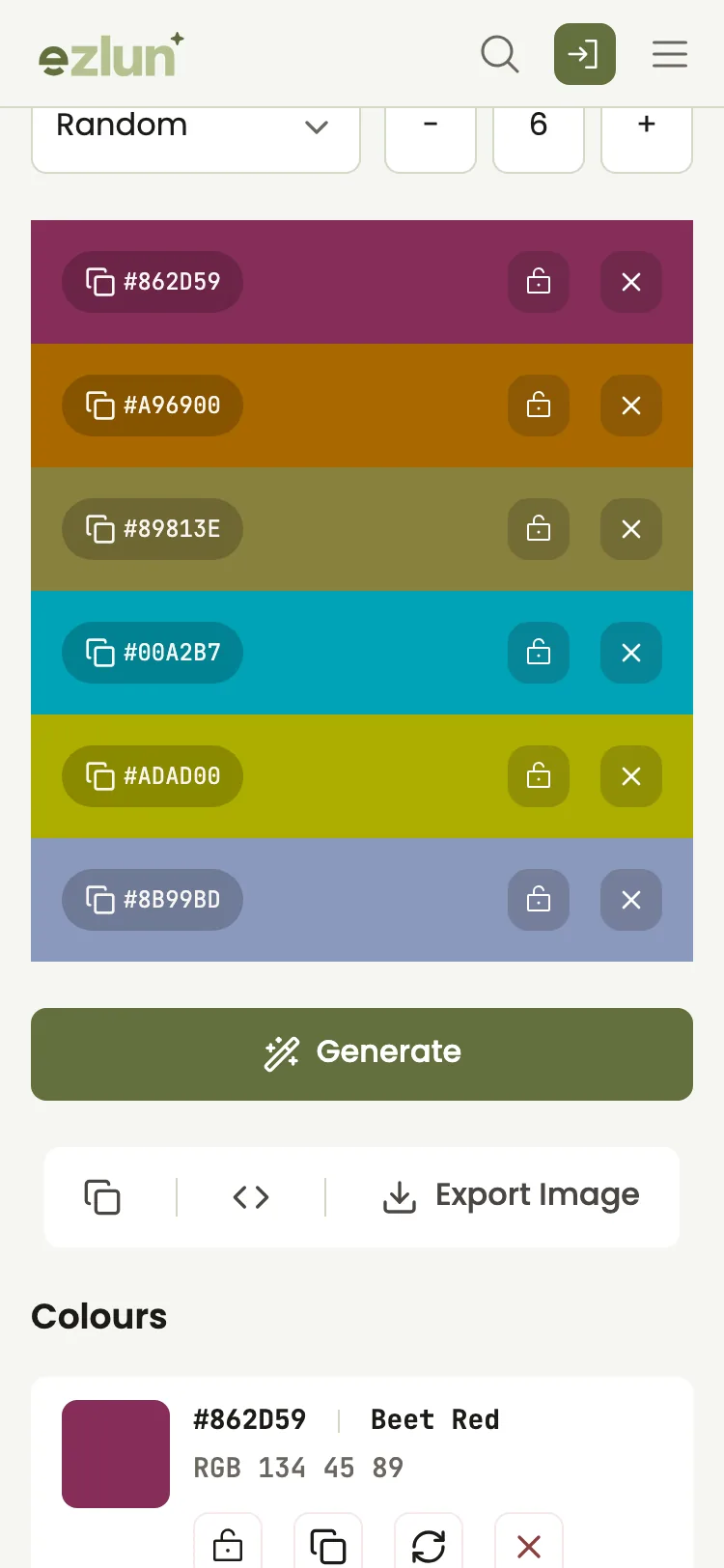
On a phone, colors are stacked in rows, with buttons to copy the codes, copy CSS or export an image.
There are three ways to export:
Copy Colors: copies a comma-separated list of HEX codes to paste into a document or message.
CSS Variables: copies a CSS block like
:root { --color-1: #1E3A5F; ... }, with the closest color name for each one in a comment. Paste it into your stylesheet and rename the variables by role, for example--color-primaryand--color-accent.Export Image: downloads a PNG of the palette in three sizes: Landscape 1200 x 630, Square 1080 x 1080 and Portrait 1000 x 1500. Handy for sending to a client or adding to a brand guide.
If your site uses Tailwind CSS, take the HEX codes from the CSS block and add them to the colors section of your Tailwind config. The tool does not export a Tailwind format directly yet.
Limitations of the tool
It does not derive colors from your brand color. Unlocked colors are generated by the selected mode, so you choose and lock the ones that work with your brand.
No contrast check yet. Test text colors with a separate contrast checker before using them.
No Tailwind or design-file export yet. You get a HEX list, CSS variables and a PNG image.
Colors can look different across screens, and even more so in print. If the palette will be printed, print a test first.
Frequently asked questions
How many colors should a website use?
Most websites work well with 3 to 5 core colors: the brand color, a secondary color, an accent, a background and a text color. Add a few status colors for errors, success and warnings. The more colors you add, the harder it is to stay consistent.
How do I pick a primary color that matches my brand's feel?
If you already have a logo, use its main color. If not, start from the feeling you want visitors to have (trustworthy, energetic, warm, premium) and look at what brands in your industry use, so you can fit in and still stand apart. There is no fixed rule linking colors to emotions, because color meaning also depends on culture.
What is the minimum contrast for readable text?
Under WCAG level AA, normal text needs a contrast ratio of at least 4.5:1 against its background, and large text at least 3:1. Level AAA is stricter: 7:1 for normal text.
Which export formats are available?
A list of HEX codes, a CSS variables block and a PNG image in landscape, square or portrait size. There is no Tailwind export yet; use the HEX codes from the CSS block in your Tailwind config.
Do I need an account?
No. The Color Palette Generator is free, needs no sign-in and uses no credits.
Summary
Assign colors by role: primary, secondary, accent, background and text. Use the accent sparingly so it really stands out.
Lock your brand color, then regenerate the rest with a mode until the palette fits.
Check WCAG contrast for your key text and background pairs, then export the CSS so every page stays consistent.
Palettes are not just for websites. The guide to personal branding for job seekers applies the same idea to your resume and portfolio, and how to choose a resume template shows how much color a resume can take. If you need illustrations in matching colors, see how to write AI image prompts. Online sellers can also read how to prepare product photos for an online store.
You can start right now with Ezlun's Color Palette Generator. It is free and needs no account.


