
How to Reduce PDF File Size in Your Browser Without Installing Software
 Ezlun Team7 min read
To reduce PDF file size, you recompress the images and data inside the file so it gets lighter while the text stays readable, small enough to email or upload to an application portal. The quickest way is a PDF compressor: pick a compression level, then download the new file. With Ezlun, this runs right in your browser.
This guide shows how to use Ezlun's File Compressor for PDFs, JPG, PNG and GIF images, and how to choose a level that keeps the file usable.
Why are some PDF files so large?
Most of a PDF's size usually comes from images, not text. A page of plain text takes very little space, but a scanned page or an inserted photo can weigh many times more. Common causes:
Scanned or phone-photographed PDFs: every page is a high-resolution image.
Images inserted at full size: a 4000px photo placed in a small frame in Word or Canva often keeps its original size when exported to PDF.
"High quality print" export settings: the software keeps images at a resolution meant for printers.
Many embedded fonts: each embedded font adds a little more weight.
So compressing a PDF mostly means lowering the resolution of the images inside and recompressing them. The more images a file has, the more you can save. A file that is almost all text will shrink only a little.
How to reduce PDF file size with Ezlun
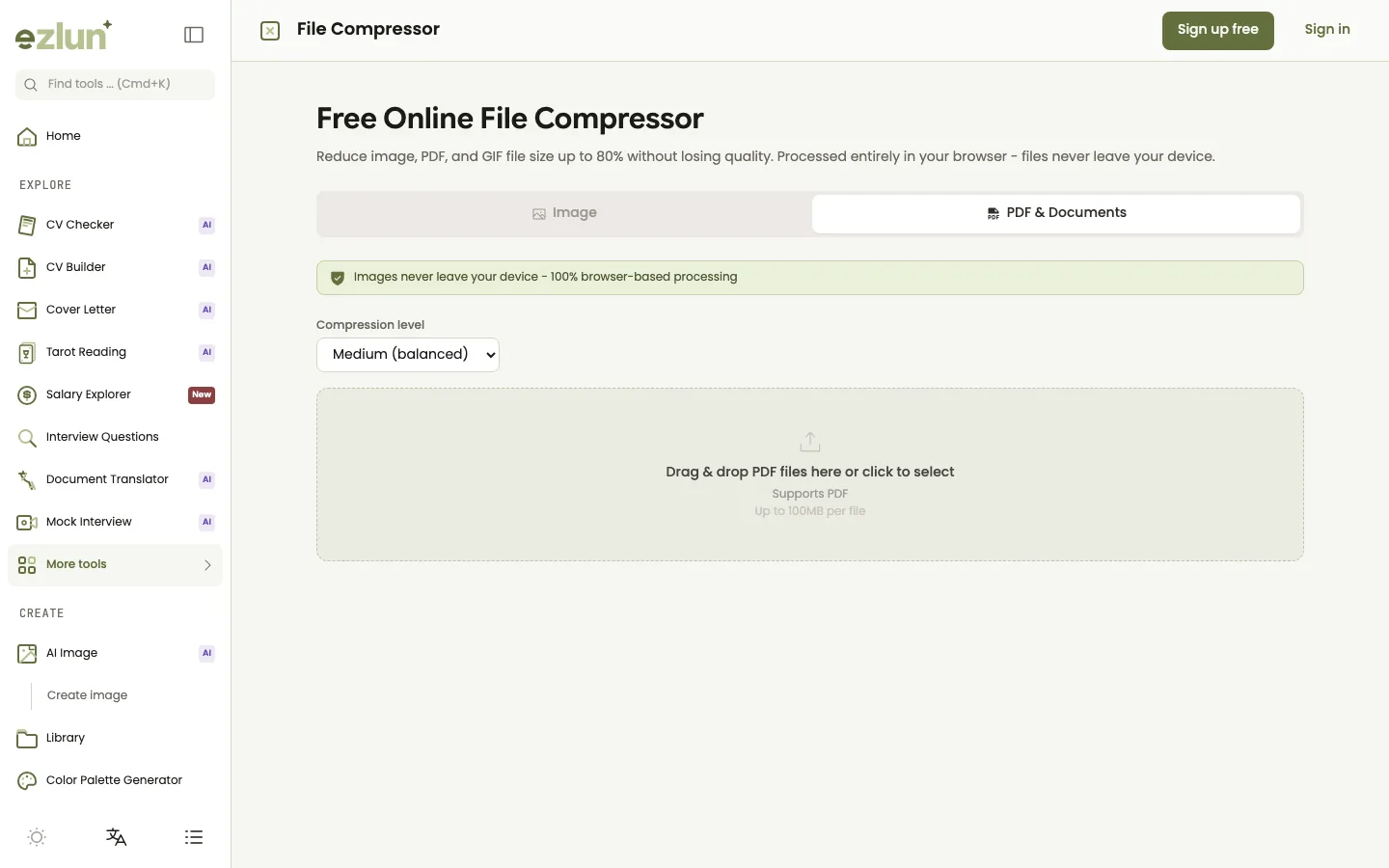
The "PDF & Documents" tab: pick a compression level at the top, then drop your PDF into the box below.
Open the tool at ezlun.com/en/tools/compress-file.
Select the "PDF & Documents" tab.
Choose a compression level: "Light", "Medium" (the default) or "Heavy". If you are not sure, leave it on Medium.
Drop your PDF into the box or click to choose a file. You can add several files at once. Each file can be up to 100MB on a computer and 30MB on a phone.
Wait for compression. The first time, your browser downloads the PDF engine (about 16MB). After that it starts faster.
Download the result: save each file, or click "Download All (ZIP)" when you have several.
Open the new file and check it before sending. Zoom in on a few pages with small text and images to make sure everything is still clear.
If the compressed file turns out bigger than the original (common with PDFs that were already optimized), the tool keeps your original file.
Which compression level keeps a PDF readable?
Each level sets how much resolution the images inside the file keep. Choose based on what you will do with the file:
Level | Images inside kept at about | Use it when |
|---|---|---|
Light (high quality) | 300 dpi, print quality | The file will be printed, or it is a portfolio with detailed images |
Medium (balanced) | 150 dpi, good on screen | Resumes, application packs, documents sent by email; try this first |
Heavy (smallest file) | 72 dpi, quick on-screen viewing | The upload limit is very low and the file only needs to be readable |
These three levels use the standard presets of the Ghostscript compression engine. Heavy can make photos, and text inside scanned images, look blurry when you zoom in. For a resume or job application, start with Medium and only move to Heavy if the file is still over the limit.
Typed text (not text inside a scanned image) usually stays sharp at all three levels, because it is stored as vector shapes, not as pictures.
Compressing JPG, PNG and GIF images
The Image tab handles single images: JPEG, PNG, WebP, AVIF, HEIC/HEIF and GIF (including animated GIFs). You can add up to 10 images at a time, each under 20MB.
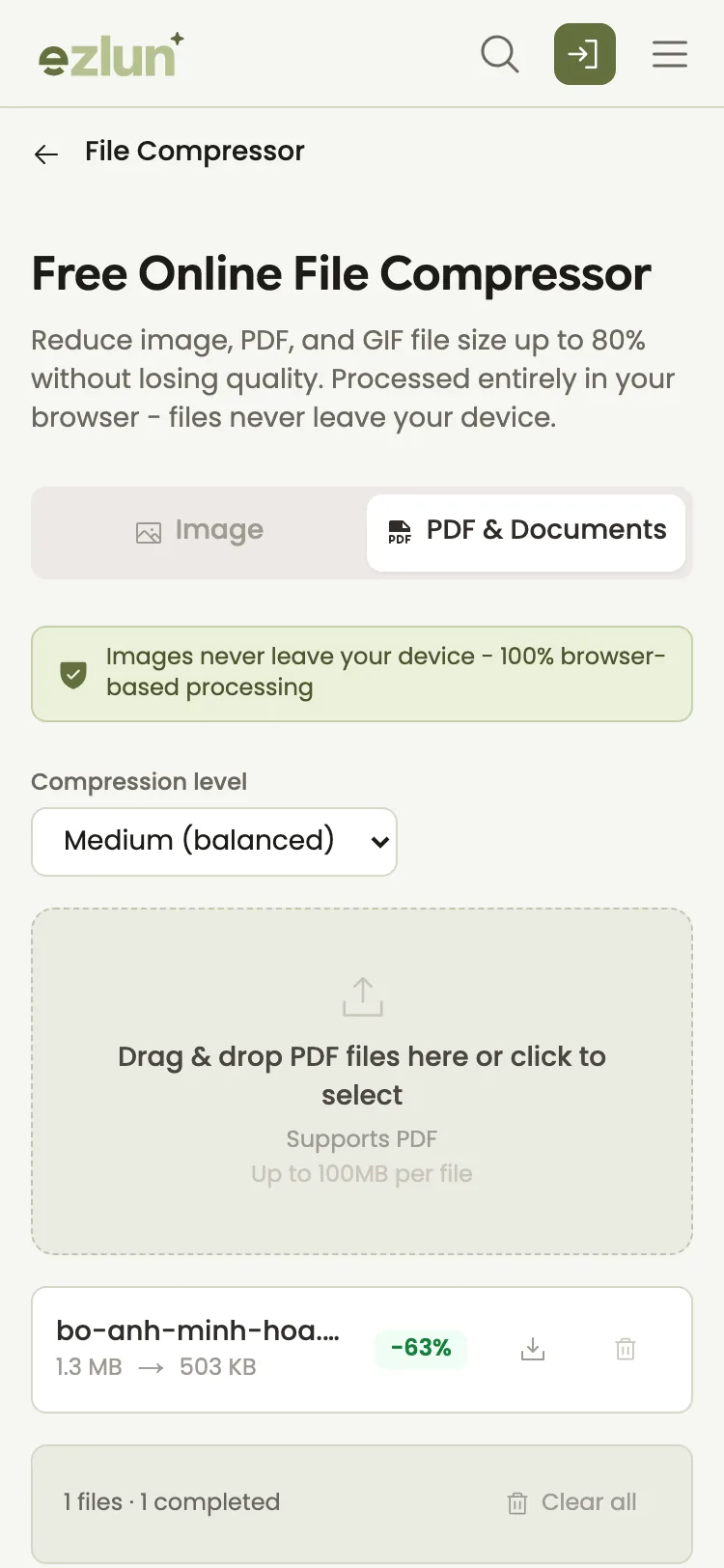
The result for a compressed PDF: its original size, its new size and how much smaller it got. Images in the Image tab show the same details.
Options under Settings:
Output format: "Same as original", or convert to JPEG, PNG, WebP or AVIF. HEIC images set to "Same as original" come out as JPEG.
Quality (default 80): a lower number gives a lighter file. For GIFs, this becomes three levels: light, medium and heavy.
Resize: by pixels or by percentage, with an option to lock the aspect ratio.
When a PNG stays a PNG, the tool reduces the number of colors and then recompresses it. That saves a lot on screenshots, logos and illustrations, but smooth gradients (like a sky) may show slight banding. Click Compare to view the original and compressed image side by side before you download.
If your photo needs a different format more than a smaller size, for example an iPhone HEIC photo, read how to convert HEIC to JPG and other image formats.
How to find the upload limit before you send
Every job site, application portal and email service sets its own size limit, and those limits can change. Instead of guessing, check in this order:
Read the note next to the upload button. Most portals state the allowed formats and the maximum size.
Read the job post or the invitation email, especially when you send your documents to a recruiter by email.
For email: your email provider has a help page with its attachment limit. The limit usually counts all files in one message together, and the recipient's server may accept less than yours sends.
If you cannot find a limit: keep your resume lean. A few pages of mostly text rarely needs to be large.
If the file is still too big after Heavy compression, look at the content itself: move your portfolio to a separate file or share a link, remove decorative images, or export again from the source file with smaller images.
Limitations of the tool
Guests get 5 compressions per browser. After that, sign in (free) to keep going without a limit. Images over 10MB also need you to sign in.
PDFs up to 100MB on a computer and 30MB on a phone. Images up to 20MB each, 10 per batch.
Not every file shrinks much. Text-only PDFs or files that are already optimized may barely change.
Heavy compression can blur photos and scanned text. Always open the file and check it before sending.
Slower on older devices, because all the work happens in your own browser.
Frequently asked questions
Does compressing a PDF make the text blurry?
Typed text usually stays sharp at every level. Text inside images, such as scanned pages or photos of documents, can look softer on Heavy. If people need to zoom in and read details, use Light or Medium.
Are my files uploaded to a server?
No. PDFs and images are compressed in your browser and are not uploaded to Ezlun's servers. Your browser only downloads the compression engine when needed, about 16MB the first time you compress a PDF.
What is the maximum input file size?
Up to 100MB per PDF on a computer and 30MB on a phone. Images can be up to 20MB each, 10 per batch, and images over 10MB require signing in.
Can I compress several files at once?
Yes. Select or drop several files together and the tool compresses them one after another. When they are done, click "Download All (ZIP)" to save them in one go.
Can I compress a password-protected PDF?
It may not work. If the file is locked with a password, open it with the password, save an unlocked copy, then compress that copy. You can add the password back afterwards in your PDF reader if you need it.
Summary
PDFs are heavy mostly because of the images inside, so compression lowers the resolution of those images.
Start with Medium for resumes and job applications, and only use Heavy if you are still over the limit.
Always open and check the file before sending, and look up the recipient's size limit instead of guessing.
If you are preparing photos for an online shop, the guide to preparing product photos for an online store covers the whole workflow, from removing the background of a photo to converting formats and reducing file size.
You can start right now with Ezlun's File Compressor. It runs in your browser, with nothing to install.


